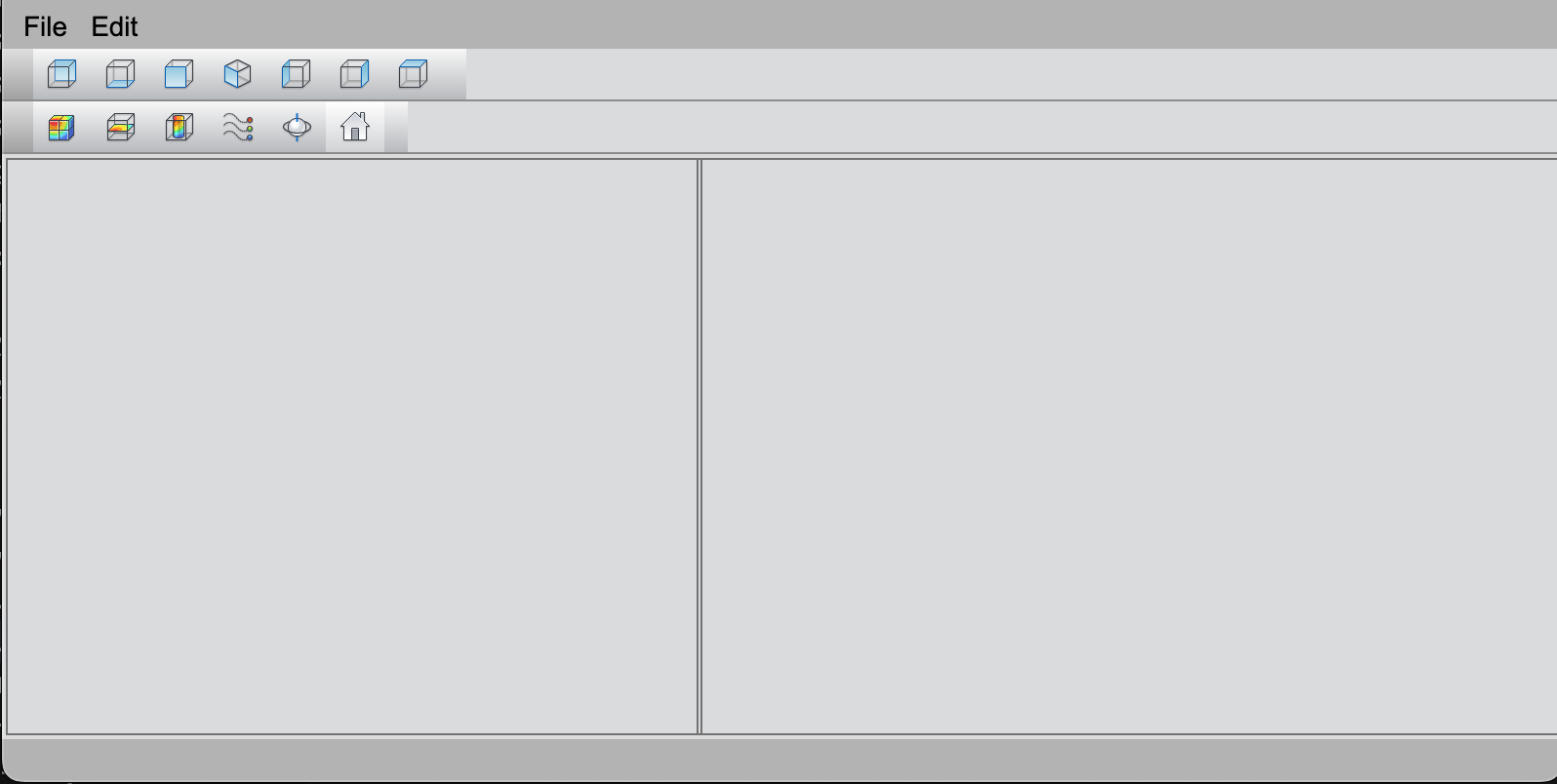
Building a Typical Main Window

In this tutorial, we will build a typical CAx application main window using the MainWindow component from the WUI framework. The MainWindow component provides a standard main window framework that supports a menu bar, tool bar, status bar, dockable windows, and a central widget, allowing for efficient layout and management of complex UI structures.
This guides offers a detailed introduction to the MainWindow component, including its structure, features and usage.
Creating the MainWindow
MainWindow是用于创建主窗口的控件,继承自Widget。它是一个高度模块化的窗口类,适用于需要复杂布局和功能的应用程序。 The MainWindow is a specialized widget designed to serves as the primary application window. It inherits from the Widget class and is highly modular, making it suitable for applications requiring complex layouts and functionality.
Key features:
- A standardized window layout that includes a menu bar, toolbars, a status bar and a central widget.
- Support for dockable windows, allowing users to customize the layout as needed.
- Ideal for building feature-rich applications with multi-region layouts.
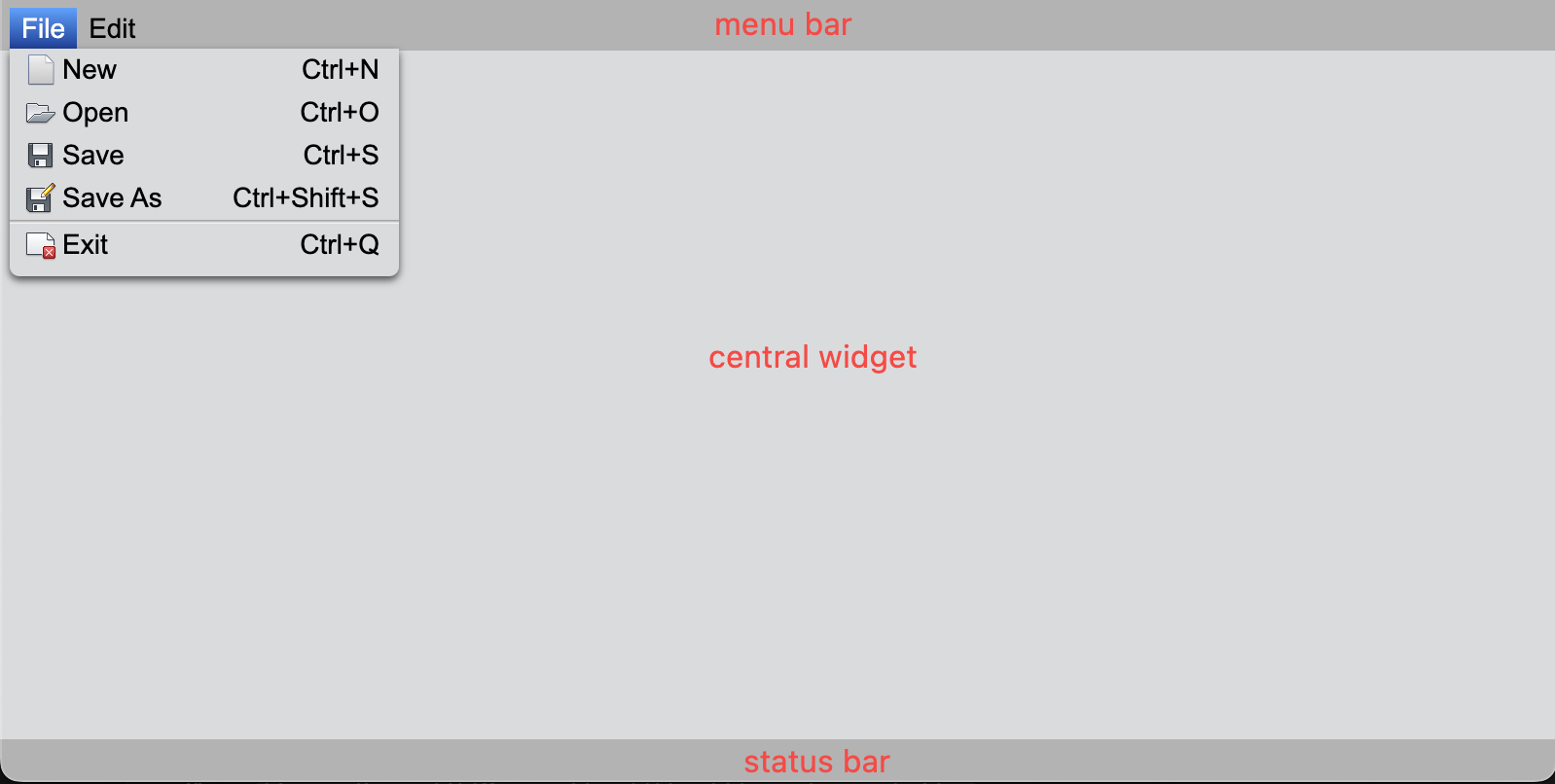
Below is an example of initializing a MainWindow. By default, it includes an empty menu bar, a central widget, and a status bar. Developers can add custom business logic and components to these regions later.
import { Button, TreeWidget, TreeNode, TextEdit, TableWidget, Splitter, Orientation, Widget } from 'wui.basic';
import { MainWindow, EDockArea } from 'wui.framework';
import "./theme";

const mainWindow = new MainWindow();

Menu Bar
The menu bar provides a standard area for placing application menus, such as "Files", "Edit", and "Help". Below is an example of adding various menu items.
// menuBar
const menuBar = mainWindow.menuBar;
const fileMenu = menuBar.add('File');
fileMenu.width = 200;
fileMenu.addItem('New', '../../images/file_48.png').shortcutKey = 'Ctrl+N';
fileMenu.addItem('Open', '../../images/AppMenu-Open_32.png').shortcutKey = 'Ctrl+O';
fileMenu.addItem('Save', '../../images/AppMenu-Save_32.png').shortcutKey = 'Ctrl+S';
fileMenu.addItem('Save As', '../../images/AppMenu-SaveAs_32.png').shortcutKey = 'Ctrl+Shift+S';
fileMenu.addSeparator();
fileMenu.addItem('Exit', '../../images/App_Menu_Close.png').shortcutKey = 'Ctrl+Q';
Tool Bar
Tool bar is used to place frequently used tools or buttons. It is typically located at the top, bottom, or sides of the window and can be dragged to float freely.
Adding a Tool Bar
To add a toolbar, use the addToolBar() method. You can specify its position or let it default to the top.
// toolBar
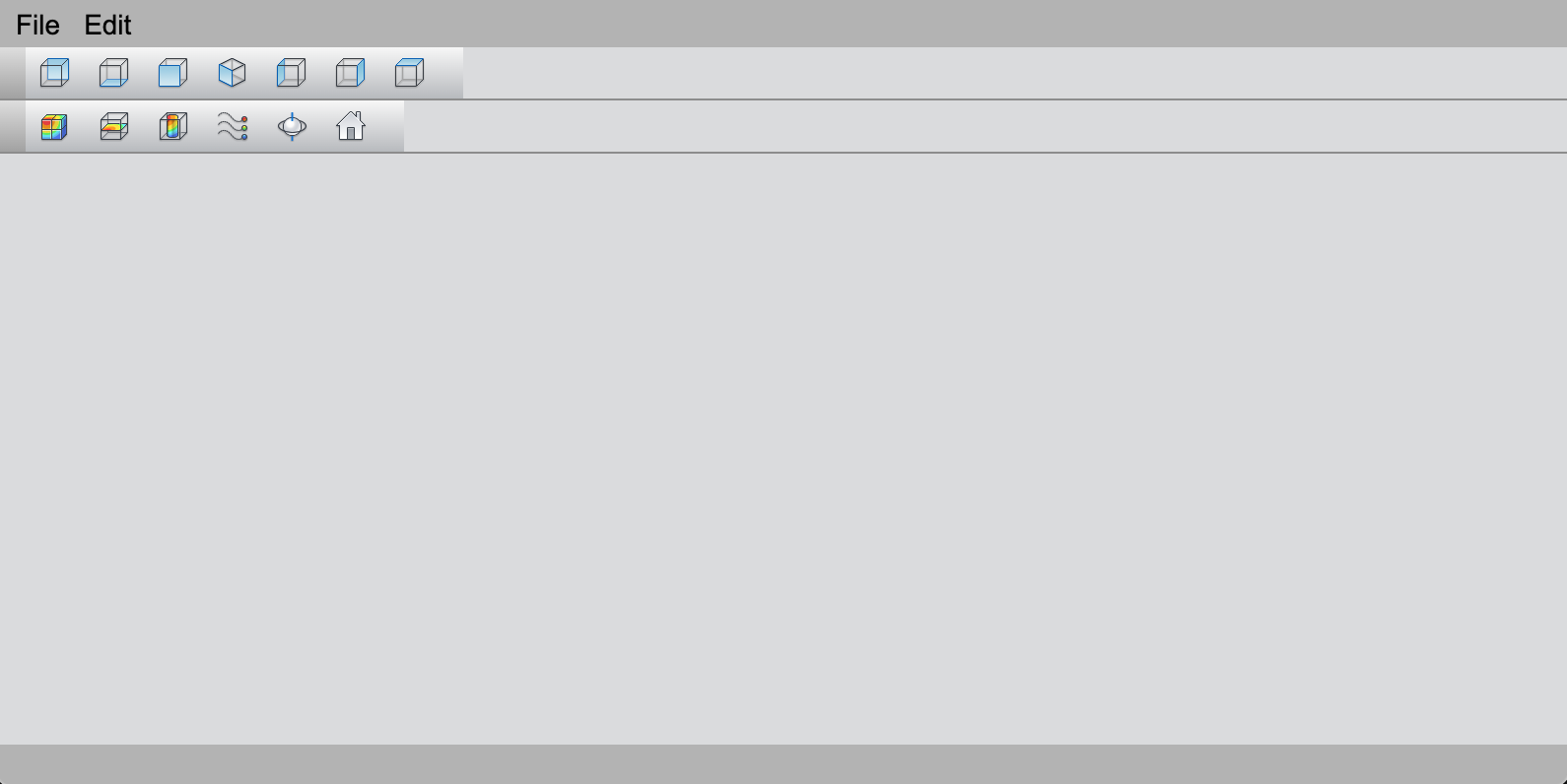
const viewToolBar = mainWindow.addToolBar(EDockArea.Top);
new Button(viewToolBar, undefined, '../../images/view_from_back_32.png');
new Button(viewToolBar, undefined, '../../images/view_from_bottom_32.png');
new Button(viewToolBar, undefined, '../../images/view_from_front_32.png');
new Button(viewToolBar, undefined, '../../images/view_from_home_32.png');
new Button(viewToolBar, undefined, '../../images/view_from_left_32.png');
new Button(viewToolBar, undefined, '../../images/view_from_right_32.png');
new Button(viewToolBar, undefined, '../../images/view_from_top_32.png');
Below is the effect of adding two toolbars at the top:
Status Bar
This status bar is used to display application status information, such as tooltips, progress bars, or other contextual data. You can add components or messages to the status bar using the statusBar property.
Central Widget
The central widget is the core area of the main window, where the primary content or functionality resides(e.g., drawing area, or dashboard).
Using Layout Manager to Divide the Central Widget
While the MainWindow can only have one central widget, you can use layout managers(e.g., VBoxLayout, Splitter) to divide the central widget into mutiple regions.
const treeWidget = new TreeWidget();
const tableWidget = new TableWidget();
// Creat a horizontal splitter to the central widget to arrange its child widgets side by side.
const hSplitter = new Splitter(mainWindow.centralWidget);
// Add the tree widget to the splitter.
hSplitter.add(treeWidget);
hSplitter.add(tableWidget);
hSplitter.setWidth(0, 250);
hSplitter.setWidth(1, 335);